Welcome Email Template for New Subscribers (The One I Actually Send)
The welcome email every new subscriber to this site gets, line by line: why each part is there, what I left out, and how I set it up on MailerLite's free plan in about twenty minutes.
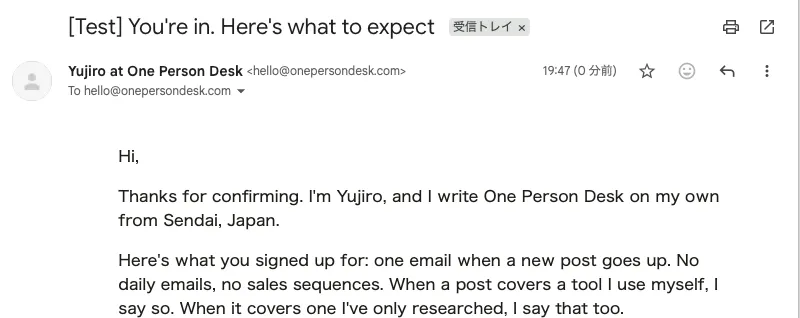
Your first subscriber shows up, and the only thing they get is a confirmation link. They click it, and then nothing. A week later your first real issue lands in their inbox, and by then they’ve forgotten who you are.
A welcome email fixes that. It’s the one email almost everyone opens, because it arrives a minute after someone decided they wanted to hear from you.
I set mine up this week for this site’s newsletter. Below is the whole thing, word for word, what each line is doing, and how I built it on MailerLite’s free plan. The screenshots come from my own account.
The template
Hi,
Thanks for confirming. I'm Yujiro, and I write One Person Desk on my own from Sendai, Japan.
Here's what you signed up for: one email when a new post goes up. No daily emails, no sales sequences. When a post covers a tool I use myself, I say so. When it covers one I've only researched, I say that too.
Three posts to start with:
- Email Newsletter Templates: 7 Tools That Design and Send Them
- How to Start a Blog When You're the Only One Working on It
- The One-Person Publishing Desk: What's Actually on It
One question, if you have a minute: what are you working on right now? Hit reply and tell me. I read every answer, and it shapes what I write next.
Yujiro
One Person Desk
It runs about 120 words. Copy it, swap in your own details, and keep the shape.
Why each part is there
The subject line says what happens next. “You’re in” confirms the signup worked. “Here’s what to expect” tells them why to open it. Skip “Welcome to the community!” and anything with exclamation points stacked up. Your reader just did something small, and the subject should match that size.
The sender name is a person. I send as “Yujiro at One Person Desk” instead of “One Person Desk.” People open email from people. Keeping the site name in there means they still recognize it later in a crowded inbox.
The preview text finishes the subject. Most inboxes show a line of text after the subject. Leave it empty and they’ll pull in whatever comes first, which is often “View in browser.” I use it to answer the obvious question before they open: how often will this person email me?
“What you signed up for” sets the deal. One email per new post, no daily emails, no sales sequences. Stating the frequency up front does two jobs. It tells readers you won’t flood them, and it makes you keep that promise when you’re tempted to send more.
The line about tools I use and tools I’ve researched is specific to this site, and you should swap in your own. Every newsletter has one thing it does differently. Put that thing in the welcome email, in one sentence, so readers know why they’re here.
Three links, no more. New subscribers are the most curious they’ll ever be, so give them somewhere to go. Three is enough to show range without making them choose from a menu. Pick your three best posts, or your three most-read ones if you have the numbers.
One question, and a request to reply. This line does more work than the rest of the email. The answers tell you what your readers are working on, which is the best source of topics you’ll find. Replies also tend to help deliverability: when people reply to your emails, inbox providers see a real conversation, and your later emails have a better chance of landing in the main inbox.
A plain signature. First name and newsletter name. No social icons, no headshot, no “Stay awesome.”
What I left out on purpose
A discount or a free download. Lots of welcome emails lead with a coupon or a PDF. If you promised one on your signup form, deliver it here. I didn’t promise anything, so adding a gift would muddy the one thing this email has to say.
My life story. The welcome email is not the place for the long version of why you started. One sentence about who you are is enough. They’ll get to know you from the newsletter itself.
Images and a logo header. The email is plain text with a few links. It loads instantly, it looks like a note from a person, and nothing breaks on a phone. The only image is the “Sent by MailerLite” badge at the bottom, which the free plan adds and you can’t remove without upgrading.
A sequence. I send one welcome email, not five. More on that below.
Three variations for other newsletters
The shape stays the same. Swap one or two lines.
If you promised a freebie on your signup form:
Here’s the checklist I mentioned: [link]. It’s yours to keep. After this, you’ll get one email when a new post goes up.
Put the freebie link before everything else. That’s the thing they signed up for, and making them hunt for it costs you their trust on day one.
If you publish on a fixed day:
Here’s what you signed up for: one email every Sunday morning, around five minutes to read.
A fixed day lets readers expect you, and expected emails get opened.
If you plan to sell something later:
Sometimes I’ll tell you about a course or product I’ve made. When I do, it’ll be clearly labeled, and it won’t be more than once a month.
Saying this early means a future launch email won’t feel like a bait and switch.
How I set it up in MailerLite (free plan)
The whole thing took about twenty minutes, including one mistake. These are the steps as they looked in my account in October 2026. Automations are available on MailerLite’s free plan.
1. Put your subscribers in a group. My signup form adds everyone to one group, called One Person Desk readers. The welcome email starts when someone joins that group. You’ll find groups under Subscribers, at dashboard.mailerlite.com/groups once you’re logged in.
2. Turn on double opt-in for the form. With double opt-in, new subscribers have to click a confirmation link before they join the group. That keeps typos and fake addresses off your list, and it means the welcome email only goes to people who confirmed.
3. Create the automation. Go to Automations and create a new workflow. Choose the trigger “When subscriber joins a group,” then add one email under it.
4. Write the email in the simple editor. MailerLite offers a drag-and-drop editor, a simple editor and a custom HTML editor. I used the simple editor, which works like a plain document. I left the title empty, pasted the text, and turned each post title into a link.
5. Send yourself a test. Mine landed in my Gmail inbox, not in spam. My Gmail is set to Japanese, which is why some of the labels in the screenshot at the top of this post are in Japanese.
6. Pick the group, then activate. This is where I made my mistake. I filled in the email, hit Activate, and got this:
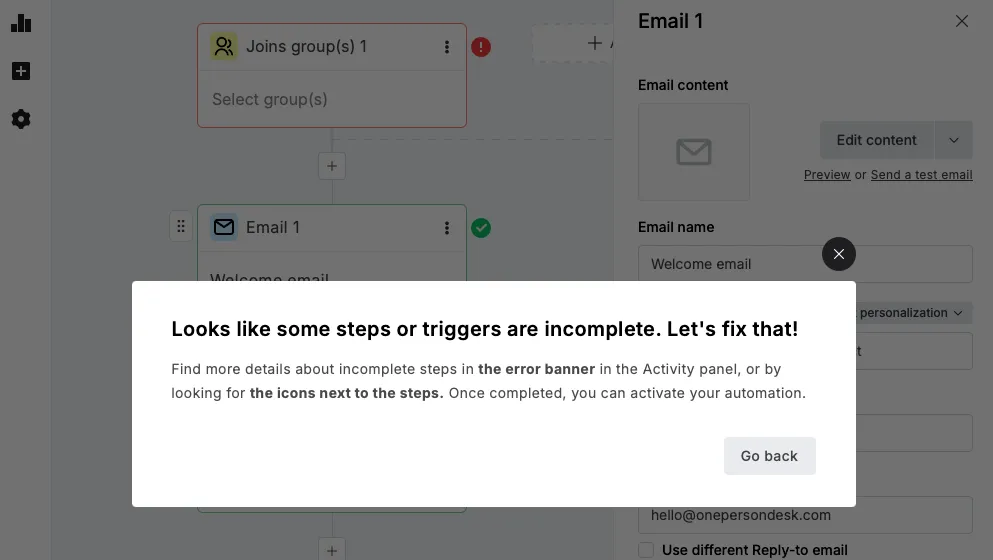
I’d written the email but never told the trigger which group to watch. The red mark on the trigger box points to it. Once I picked the group, the mark turned green.
7. Don’t send it to people already on your list. When you activate, MailerLite asks whether existing subscribers in the group should get the email too. I chose “No, only add new subscribers,” because the only person in my group was me, testing the form.
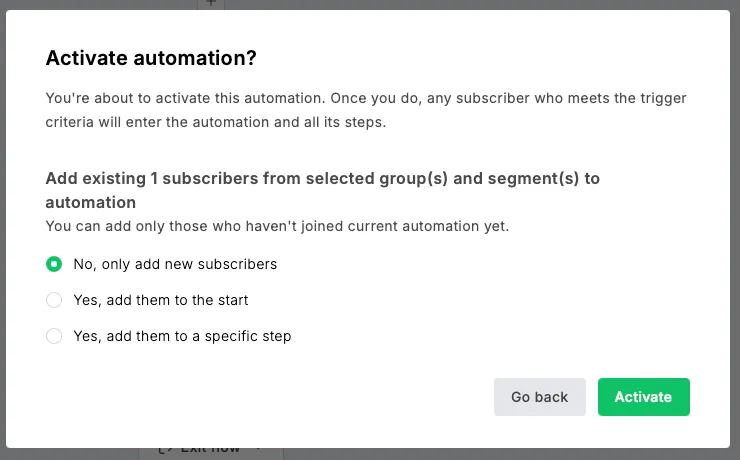
If you’re adding a welcome email to an older list, think about this one. Sending a “thanks for subscribing” note to someone who joined two years ago looks odd.
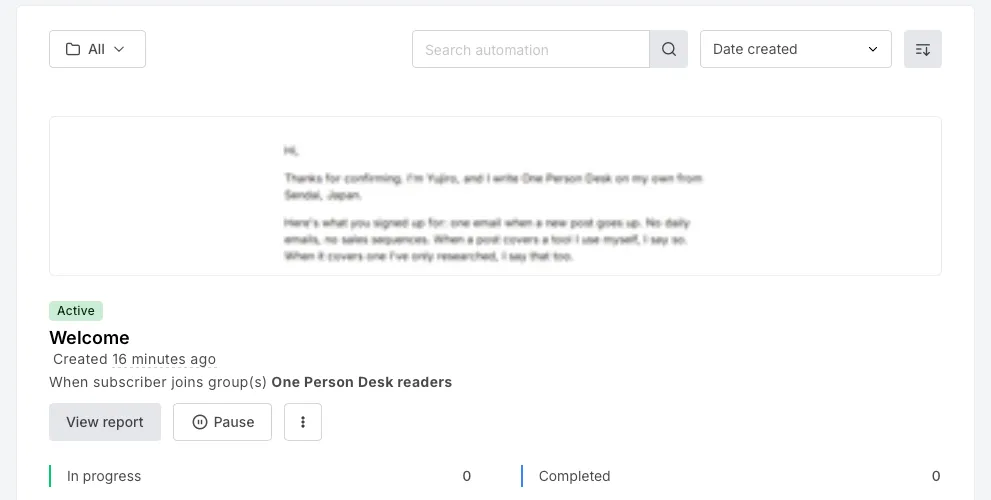
Once it’s live, the automation shows as Active in your list of workflows:
Two things to check before you turn it on
Your mailing address in the footer. MailerLite adds a postal address to the bottom of every email, because US anti-spam law requires one. Every subscriber will see it. If you’d rather not share your home address, set up a business address or a PO box before your first send. I’d check this before anything else.
The default footer sentence. My footer came with a stock line saying the reader received the email because they signed up “or made a purchase.” I don’t sell anything, so that’s not true for my list. Read your footer the way a subscriber would and change anything that doesn’t fit, if your plan lets you edit it.
One welcome email or a whole sequence?
Plenty of guides recommend a welcome sequence: three or more emails over the first couple of weeks, each introducing a different part of what you do. For a business with products to explain, that can make sense.
For a newsletter that’s just getting started, one email does the job. A sequence is more to write, more to keep up to date, and more chances to annoy someone who wanted one email per post. Start with one. If readers keep asking the same question in their replies, that question is your second email.
Other subject lines that fit this template
If “You’re in. Here’s what to expect” doesn’t sound like you, these keep the same job: confirm the signup and promise something useful.
- You’re on the list. Here’s how this works
- Thanks for subscribing (here’s what’s next)
- Welcome. Three posts to start with
- You’re in. One quick question
Avoid subject lines that oversell, such as “Your life is about to change.” The first email sets how much your readers trust your subject lines from then on, and a dramatic one gets a reader to open once and then tune out.
How to tell if it’s working
MailerLite shows a report for each automation, with how many people received the welcome email, how many opened it, and how many clicked a link. Those numbers are small at first, so watch for patterns over the first fifty or so subscribers rather than reacting to the first five.
Three things are worth tracking:
- Opens. If very few people open the welcome email, the subject line or the sender name is the problem, since nothing else is visible before the open.
- Clicks on the three links. These tell you which of your posts new readers find most interesting. Move the winner to the top of the list.
- Replies. These don’t show up in the report. Count them in your own inbox. A handful of replies from your first hundred subscribers is a good sign.
I’ll add my own numbers to this post once the welcome email has gone out to enough people to mean something.
When to update it
A welcome email goes stale slowly, which makes it easy to forget about. Reread yours whenever one of these happens: you publish a post that beats one of your three links, you change how often you send, or you start offering something you didn’t offer before. Any of those makes the email you wrote on day one slightly untrue, and the welcome email is the worst place for that.
Before you write yours
Open the last three welcome emails you received from newsletters you subscribed to. Notice which ones you read past the first line and which you deleted. Then write yours in one sitting and send it to yourself before you turn it on.
If you haven’t picked an email tool yet, I compared seven of them, including MailerLite, in the tools that design and send newsletters.